
Want to get your item data into EasyFinder from your own feed? Point EasyFinder to an XML, CSV or JSON feed and it reads your items from it, then keeps them up to date every day. Here’s exactly how to set it up, and how to build a feed that makes your search work at its best.
Before You Start #
Make sure your feed:
- is reachable at a public URL, without a login;
- is an XML, CSV of JSON file, encoded in UTF-8;
- has at least a title, a link and a price for every item.
Step 1. Prepare Your Feed #
Before you connect it, make sure your feed is complete and properly structured. This ensures EasyFinder can read and sync all your data correctly.
Below is an example structure based on a typical XML feed. Use these field names and EasyFinder recognises your fields by itself. The more data you include, the better EasyFinder’s search and filtering work.
Feed Example Overview
| Field | Required | Explanation and example |
|---|---|---|
| id | Recommended | Unique item identifier. It keeps an item linked to its search data and statistics from one sync to the next. Example: <id>431</id>Without an id, EasyFinder recognises an item by its link, so a changed link counts as a new item. |
| title | Ja | Item name or title. Example: <title>Giant Anytour X bike</title> |
| link | Ja | Full URL to the item page on your website. Example: <link>https://bikestore.com/e-bikes/giant-anytour-x/</link> |
| price | Ja | Regular item price, including the currency. Example: <price>€ 2399,99</price>Write the price with its currency, such as € 2399,99 or 2399.99 EUR. A thousand separator only works together with decimals: 1.299,99 is read correctly, 1.299 is not. |
| sale_price | Nee | The discounted price. Shoppers see it as the price, with the regular price struck through next to it. Example: <sale_price>€ 1999,99</sale_price>Write the price with its currency, such as € 2399,99 or 2399.99 EUR. A thousand separator only works together with decimals: 1.299,99 is read correctly, 1.299 is not. |
| image_link | Nee | Main image shown in the results. Must be a full URL. Example: <image_link>https://bikestore.com/images/anytour_main.jpg</image_link>Strongly recommended: the image is the largest part of an item card, and the first thing shoppers look at. |
| additional_image_link | Nee | Extra images. The first one can appear when a shopper hovers over the main image. Example: <additional_image_link>https://bikestore.com/images/anytour_side.jpg</additional_image_link>For more than one image, repeat the tag, or separate the URLs with commas. |
| description | Nee | Main item description. HTML is supported for formatting. Example: <description><![CDATA[<p>Versatile E-bike for city and weekend rides...</p>]]></description> |
| categories | Nee | Category hierarchy, with > between the levels. You can include multiple categories, each in its own <category> tag.Example: <categories><category>Sports > Cycling > E-bikes</category><category>Sports > Long range</category></categories> |
| brands | Nee | Brand or manufacturer name. Example: <brands>Giant</brands>Name the field brands and EasyFinder recognises it by itself. Is yours called brand? Then pick it under Brand in the advanced setup. |
| availability | Nee | Item availability. Supported values: in_stock, out_of_stock, preorder, backorder or a numberExample: <availability>out_of_stock</availability> of <availability>12</availability>Spelling is flexible: In stock and instock work too. A number is the stock quantity, and 0 means out of stock. You can use the stock in your ranking rules and on your item cards. |
| sku | Nee | Your own article number. Shoppers can search for it. Example: <sku>GT-AX-2025</sku> |
| date_created, date_modified | Nee | When the item was added to your shop, and when it last changed. Example: <date_created>2026-03-01T10:00:00</date_created>Useful for a “New” badge on your item cards, or a ranking rule that boosts new arrivals. |
| add_to_cart_id | Nee | The ID your cart uses for this item, if it differs from the id. The add-to-cart button on your item cards sends it. Example: <add_to_cart_id>431-blue</add_to_cart_id> |
| custom fields | Nee | Add as many extra fields as you want. For example: <color>black</color>or: <materials><material>aluminum</material><material>wood</material></materials>The custom fields you select become searchable, and can be shown as filters. Note that , | ; & and / split a value: Black & White becomes two values, Black and White. |
Live example: https://easyfinder.ai/wp-content/uploads/feed_example.xml
Step 2. Connect Your Feed #
Go to app.easyfinder.ai and log in. If you’re new, you’ll land in the onboarding. Under Import your products, choose Product feed.
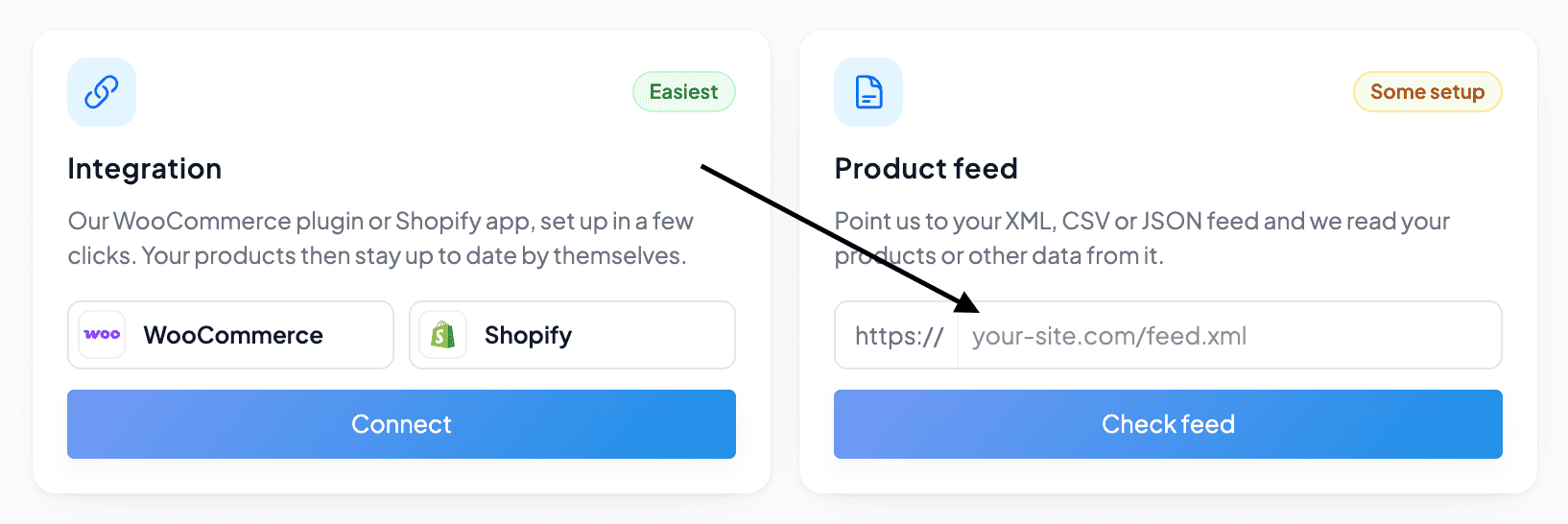
Paste the URL of your feed under Feed URL and click Check feed. EasyFinder reads your feed and finds your items by itself, wherever they sit in the file.
Step 3. Choose Smart or Advanced Setup #
In the same step, choose how your fields are matched:
- Smart setup: EasyFinder matches your product data for you, so you skip a step.
- Advanced setup: you check which of your fields holds what, in an extra step.
If you used the field names from Step 1, Smart setup is all you need. If EasyFinder can’t match every field, it says We could not match every field automatically and shows you the extra step anyway.
Step 4. Optional: Map Your Data #
With the advanced setup, Map your data shows which of your fields holds what. The card on the right shows your own items as you go, so you see straight away whether a field fits.
- The basics: what every card needs, such as the title, price, link and image.
- More about your products: the sale price, description, categories, brand, stock and more. Choose Not in my data for a field your feed doesn’t have.
- Custom fields: extra fields your search learns from, such as colour or material. They can become filters too. Click Add a field to add one.
Click Save and continue when everything fits.
Step 5. Make It Yours #
In the last step, set your Main color en Secondary color, your logo and where your search bar is. You can change all of it later.
Here you also choose whether to Import out of stock products. When enabled, items marked out of stock are still added to your search, ranked below the items in stock.
Click Save and start importing. EasyFinder imports your items, and your search is ready once the import has finished.
Step 6. Add EasyFinder to Your Website #
With a product feed, you add EasyFinder to your website yourself, with one line of code. In the dashboard, open your website and click Add to your site.
Copy the code and paste it into the <head> of every page of your website. It looks like this, with your own number at the end:
<script src="https://widget.easyfinder.ai/easyfinder.js?efid=123" async></script>
<head> is? Ask your developer, or contact us and we’ll help you out.
Show Extra Information on Your Item Cards #
Want to show a delivery time, a stock indicator or a badge like “Delivered within 24 hours”? Add a field for it to your feed, such as <delivery_time>24 hours</delivery_time>, and show it with the item card editor.
There, a text block can print the value of any field in your feed, and you can show a block only for the items it fits. For example, only when delivery_time has a value. Check out our guide on how to use the Item card editor.
Pagination for JSON Feeds #
An XML or CSV feed is read in one go, so it doesn’t need pagination, however many items it has.
A large JSON feed can be split into pages. EasyFinder first reads your feed URL as it is, then asks for the next pages by adding ?page=2, ?page=3 and so on. Tell EasyFinder whether another page follows:
- add
"has_more": truenext to your list of items, andfalseon the last page; - or add
"current_page"en"total_pages"; - or serve the items as a plain list, and return an empty list after the last page.
// Example page of a JSON feed: https://bikestore.com/feed.json?page=2
{
  "products": [
    { "id": "431", "title": "Giant Anytour X bike", "link": "https://bikestore.com/e-bikes/giant-anytour-x/", "price": "€ 2399,99" }
  ],
  "has_more": true
}
We suggest 100 items per page for fast syncing.
Keeping Your Items Up to Date #
EasyFinder reads your feed again every night, so changes in your feed show up in your search the next day. Changed something you want in your search right away? Click Sync now on your website’s overview in the dashboard.
Feed Structure Guidelines Overview #
- Always use UTF-8 encoding for your feed.
- Use an XML, CSV or JSON feed.
- Include at least one field shoppers can filter on, such as a brand, a category or a custom field.
- A product feed usually uses
<items>of<products>as the root element. Other names work too: EasyFinder finds your list of items by itself.
<?xml version="1.0" encoding="UTF-8"?>
<items>
  <item>
    <!-- all item data -->
  </item>
  <item>
    <!-- all item data -->
  </item>
</items>
- Any naming convention works, but following ours speeds up onboarding, because EasyFinder then recognises your fields by itself.
- Include as many relevant fields as possible. The more structured and readable the data, the better EasyFinder can interpret it.
- XML guidelines:
- Don’t use tag attributes. For example, use
<product><id>123</id></product>instead of<product id="123">.... - Keep the structure as flat as possible. Some nesting is fine, but avoid deep or complex hierarchies.
- Encode special characters, such as &, with an entity or with CDATA:
<!-- ✗ WRONG: Invalid XML --> <title>Black & White T-shirt</title> <!-- ✓ CORRECT: Using entities --> <title>Black & White T-shirt</title> <!-- ✓ CORRECT: Using CDATA --> <title><![CDATA[Black & White T-shirt]]></title>
- Don’t encode with both CDATA and entities:
<!-- ✗ WRONG: Encoded twice, shows the entity text instead of the symbol --> <title><![CDATA[Black & White T-shirt]]></title> <!-- ✓ CORRECT: Use either plain text in CDATA or HTML entities, not both --> <title><![CDATA[Black & White T-shirt]]></title> <!-- OR --> <title>Black & White T-shirt</title>
- When a field holds HTML, wrap it in CDATA:
<!-- ✓ CORRECT: HTML tags inside CDATA -->
<description><![CDATA[<p>Versatile E-bike for city and weekend rides...</p>]]></description>
- CSV guidelines:
- Separate the fields with commas, and put the field names in the first row.
- Put every item on a single line. Wrap a value that holds a comma in double quotes.
id,title,link,price,brands,availability
431,Giant Anytour X bike,https://bikestore.com/e-bikes/giant-anytour-x/,"€ 2399,99",Giant,in_stock
Once your feed is connected, EasyFinder will automatically sync and make your items searchable.


 English
 Dutch