
Running your shop on WooCommerce? Then the EasyFinder plugin is the easiest way to connect it. Install it once, and your products, stock and sales stay up to date in EasyFinder by themselves. Here’s how to set it up.
Before You Start #
Make sure:
- you can log in to your WordPress admin and install plugins;
- WooCommerce is active, and your shop has products;
- you have an EasyFinder account at app.easyfinder.ai.
Step 1. Choose WooCommerce #
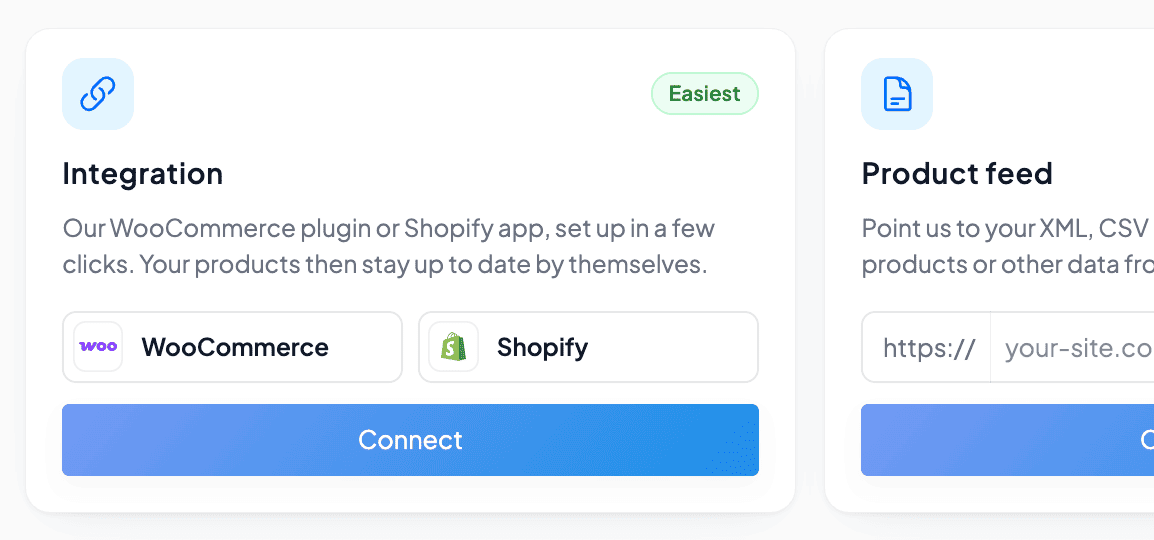
Log in to app.easyfinder.ai. If you’re new, you’ll land in the onboarding. Under Import your products, choose Integration, pick WooCommerce under Your platform and click Connect.
EasyFinder now checks your shop. Is the plugin already installed and active? Then your shop connects straight away, and you can skip to Step 3.
Step 2. Install the Plugin #
A window opens: Setup EasyFinder with WooCommerce. Follow its three steps:
- Download our plugin: click Download plugin to download the EasyFinder plugin as a zip file.
- Upload to WordPress: in your WordPress admin, go to Plugins → Add New → Upload Plugin, select the zip file and click Install Now.
- Activate the plugin: click Activate Plugin. The plugin then guides you through a quick setup in WordPress.
Back in EasyFinder, click Proceed.
Step 3. Choose Your Languages #
Is your shop available in more than one language? Then EasyFinder tells you which languages it found, for example We found your shop in English, Dutch. We import English first, and you can add the others in the last step.
Each language gets its own search, with its own filters and item cards.
Step 4. Make It Yours #
In the last step, set your Main color en Secondary color, your logo and where your search bar is. You can change all of it later.
Here you also choose:
- Import out of stock products: when enabled, items marked out of stock are still added to your search, ranked below the items in stock.
- Languages to import: the other languages of your shop, if your plan includes them.
Click Save and start importing. EasyFinder imports your products, and your search is ready once the import has finished.
What the Plugin Does for You #
Once your shop is connected, the plugin takes care of the rest:
- Your search on your shop: the plugin adds EasyFinder to your store. You don’t need to add any code.
- Products up to date: when you add, change or remove a product in WooCommerce, EasyFinder picks it up right away. On top of that, EasyFinder reads your whole shop again every night.
- Sales: paid orders are sent to EasyFinder, so your statistics show which searches lead to a sale. When you connect, the orders of the last 30 days are imported as well, so your best sellers are known from day one.
- Add-to-cart button: the button on your item cards puts products straight into your WooCommerce cart. It only shows for products that can go into the cart right away, so never on one that’s sold out.
- Product recommendations: switch on Product recommendations in your dashboard, and the plugin shows EasyFinder’s picks in the related products on your product pages.
Next Steps #
Your search works straight away, but you can make it your own:
- Choose what your items show in your search results with the Item card editor.
- Choose which filters your shoppers see with Filter management.
- Push the products you want to sell higher with Product boosting.
Once your shop is connected, EasyFinder keeps your products up to date and searchable by itself.


 English
 Dutch