
If you want to get all your item/ product data into EasyFinder and make the search features work smoothly, here’s exactly how to do it.
Step 1. Log in to EasyFinder #
Go to app.easyfinder.ai and log in.
If you’re new, you’ll land in the onboarding interface. Here, you can choose from different integrations.
If you want full control or no integration fits your website, select the card “Live feed”.
Step 2. Add your feed URL #
In this step, you can paste the URL that points to your feed.
Right now, EasyFinder supports XML or JSON feeds encoded in UTF-8.
Before you paste it, make sure your feed is complete and properly structured, this ensures EasyFinder can read and sync all your data correctly.
Below is an example structure based on a typical XML feed (like the one you might use for Google Merchant). The more data you include, the better EasyFinder’s search logic and filtering will work.
Feed Example Overview
| Attribute | Required | Explanation and example |
|---|---|---|
| id | Yes | Unique item identifier. Example: <id>431</id> |
| title | Yes | Item name or title. Example: <title>Giant Anytour X bike</title> |
| link | Yes | URL to the item page on your website. Example: <link>https://bikestore.com/e-bikes/giant-anytour-x/</link> |
| description | No | Main item description. HTML is supported for formatting. Example: <description><![CDATA[<p>Versatile E-bike for city and weekend rides...</p>]]></description> |
| image_link | No | Main image shown in results. Must be a full URL. Example: <image_link>https://bikestore.com/images/anytour_main.jpg</image_link> |
| additional_image_link | No | Extra image that appears when hovering over the main image. Example: <additional_image_link>https://bikestore.com/images/anytour_side.jpg</additional_image_link> |
| price | No | Regular product price including currency. Example: <price>€ 2399,99</price>Prices should be fully formatted (e.g. 32 EUR or $21.9). Thousand separators are not supported. |
| sale_price | No | Optional discounted price. Example: <sale_price>€ 1999,99</sale_price>Prices should be fully formatted (e.g. 32 EUR or $21.9). Thousand separators are not supported. |
| availability | No | Item availability. Supported values: [in_stock], [out_of_stock], [preorder], [backorder], [number]Example: <availability>out_of_stock</availability> or <availability>12</availability>You can use specific values in your ranking rules to boost a product’s position in the results. |
| categories | No | Category hierarchy. You can include multiple categories, each on its own line or wrapped in separate <category> tags.Example: <categories><category>Sports > Cycling > E-bikes</category><category>Sports > Long range</category></categories> |
| brand | No | Brand or manufacturer name. Example: <brand>Giant</brand> |
| custom fields | No | Add as many extra fields as you want. For example: <color>black</color>or: <materials><material>aluminum</material><material>wood</material></materials>These can be used in filters or search logic, even if not shown visually. |
Live example: https://easyfinder.ai/wp-content/uploads/feed_example.xml
Step 3. Map and Extend Fields in EasyFinder #
After pasting your feed URL, EasyFinder will automatically detect most fields.
You can then add extra attributes if you want to make them searchable or filterable.
Everything you add here won’t necessarily be displayed, it just enhances the search and filter logic.
Step 4. Optional: Use the Extra content Fields #
In EasyFinder, you can customize product cards based on fields in your feed. Use them to show extra content above or below the title, or to toggle badges like “Delivered within 24 hours” by providing a field (e.g. “inOneDay”) with a value like true or 1. Great for stock indicators, delivery info, item summaries, or small icons.
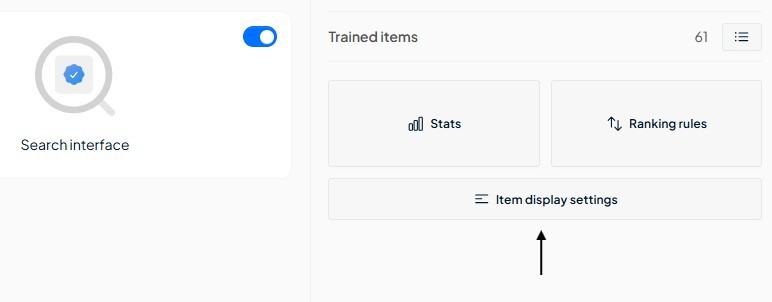
To set this up, click “Item display settings”. If you want to use conditional logic, make sure “Advanced settings” are enabled via the settings icon.
Step 4. Pagination #
EasyFinder also supports pagination in your feed.
You can use a query parameter like ?page=2 to split your feed into multiple pages.
Pagination is strongly recommended for all feeds and required if you have more than 50 items.
We suggest including 10 items per page for best performance and faster syncing.
Feed structure guidelines overview #
- Always use UTF-8 encoding for your feed.
- Use either XML or JSON feeds.
- Make sure to include at least one filterable type, such as a brand, custom field, or category.
- Product feeds use <items> or <products> as the root element:
<?xml version="1.0" encoding="UTF-8"?>
<items>
  <item>
    <!-- all item data -->
  </item>
  <item>
    <!-- all item data -->
  </item>
</items>
- Any naming convention works, but following ours speeds up onboarding since it allows automatic detection.
- Include as many relevant fields as possible. The more structured and readable the data, the better EasyFinder can interpret it.
- XML guidelines:
- Don’t use tag attributes. For example, use
<product><id>123</id></product>instead of<product id="123">.... - Keep the structure as flat as possible. Some nesting is fine, but avoid deep or complex hierarchies.
- No encoding of special characters (e.g., &):
<!-- ✗ WRONG - Invalid XML --> <title>Black & White T-shirt</title> <!-- ✓ CORRECT - Using entities --> <title>Black & White T-shirt</title> <!-- ✓ CORRECT - Using CDATA --> <title><![CDATA[Black & White T-shirt]]></title>
- Don’t encode with both with CDATA and entities:
<!-- ✗ INCORRECT - Encoded twice, will display the entity text instead of the symbol --> <title><![CDATA[Black & White T-shirt]]></title> <!-- ✓ CORRECT - Use either plain text in CDATA or HTML entities, not both --> <title><![CDATA[Black & White T-shirt]]></title> <!-- OR --> <title>Black & White T-shirt</title>
- When HTML is used as content of an field, use CDATA to wrap it
<!-- ✓ CORRECT - HTML tags inside CDATA encoding -->
<description><![CDATA[<p>Versatile E-bike for city and weekend rides...</p>]]></description>
Once your feed is connected, EasyFinder will automatically sync and make your items searchable


 English
  Dutch
Dutch